

Send Tax Returns
Send prepared tax returns to clients for e-signature. Fedix matches the client and invoice for you, tracks the status as the return is viewed and signed, and queues signed returns for your tax agent to review. Beta.
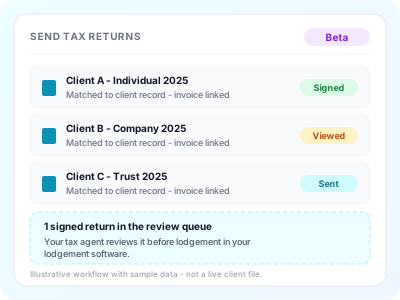
What Send Tax Returns does
Automatic matching and linking
Drop in the prepared return. Fedix reads the taxpayer details from the document, matches the return to the client record and links it to the matching invoice, so nothing is filed against the wrong client. You confirm the match before it goes out.
E-signature through the client portal
The client signs in the portal, with the invoice attached where one is outstanding. Your practice decides whether electronic signing is suitable for the document.
Status tracking
The return's status updates as it is sent, viewed and signed, so the team can see where every return sits without chasing.
Review before lodgement
Once the client has signed, the signed return is queued for your tax agent to review. Lodgement stays in your lodgement software - Practice Manager does not lodge.
How it works
Drop the prepared return(s)
Bring one or more prepared tax-return PDFs into the Send Tax Returns wizard on the eSign page. You prepare the return in your own software; Fedix handles what happens after that.
Confirm the match and invoice
Fedix reads the taxpayer details and proposes the client record and the matching invoice. Review the proposed match, select or confirm the invoice, and correct anything that is not right before you send.
Send for signature
The return goes to the client for electronic signature through the client portal, with the invoice attached where one is outstanding. Clients who have opted in can be notified by SMS.
Track, then review the signed return
Watch the status move as the return is sent, viewed and signed. The signed return then waits in the review queue for your tax agent, who reviews it before lodging it in your lodgement software.
Outcomes you'll see
The client and invoice are matched and confirmed before the return is sent
Sent, viewed and signed status on one board, so there is less to chase
A clear tax-agent review step before the return is lodged
See it in the product
Tutorial

Recorded on a demo practice with fictional data. English narration with captions.
Learn more
Documents and e-signatures
How document requests and signature requests sit inside the wider client journey in Fedix.
Tax-return management
Organise the preparation work, track the return and keep preparer notes with the task.
Client portal
The place your clients log in to upload documents, sign and pay.
ATO Integration
Authorised ATO data retrieval through Fedix's DSP integration, brought into your practice workflow.
Ready to experience Send Tax Returns?
Get started and save time today